AI Daily Briefing for Business Owners: How to Get Your Morning Report Before Coffee

Your phone buzzes before your feet hit the floor.
A client question. A crew update. A meeting you forgot about.
By 8 a.m., you've checked four apps. You still don't know what your team is doing today.
You don't need more apps. You need one short report, waiting for you every morning.
An AI daily briefing puts the key facts in one short report. Start by testing the report yourself. Connect and schedule it only after it tells you what you need.
Key Takeaways
An AI daily briefing is one email each morning with your team's work, client questions, and your schedule.
You can read it or listen to it while you drink your coffee.
It summarizes only the sources you provide or successfully connect.
Test a manual briefing first. Automate only after the sources and output work.
What Is an AI Daily Briefing?
An AI daily briefing is a short report built from the sources you provide or connect. It brings together today's schedule, team updates, client questions, and one owner decision. It can only report on information it can access.
Think of it like a chief of staff who never sleeps. It doesn't make decisions. It gets you ready to make them.
Why a Morning Briefing Matters for Owners Who Run the Day-to-Day
Here's the hard truth. If you run the daily work, you're the hub. Every question flows to you.
So you start each day behind. You react instead of plan.
I've built daily briefings for three local service business owners who run their day-to-day. One owns a construction company. His mornings used to start with crew texts and a full inbox. He hadn't even seen his calendar.
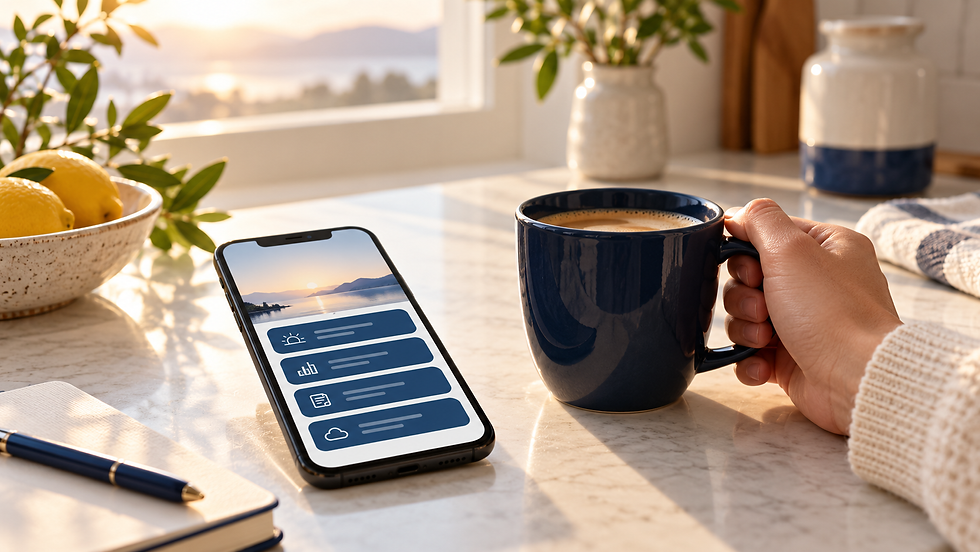
The aim is one short report before the workday starts. For example, you might choose a 6 a.m. email and read it with coffee. That timing is an example, not a client result.
A useful report should show which crews are on which jobs and which client questions need the owner's decision.
Why Owners Stay Stuck in the Inbox
The info you need isn't missing. It's scattered.
Crew updates live in texts. Client questions live in email. Your schedule lives in your calendar. Job status lives in your project software.
You are the only thing connecting them. That's why every morning starts with you hunting.
If you want to see how much of your day goes to this, read why every decision still comes back to you.
What to Look for Before You Build a Daily Briefing
You've already got most of what you need. Check for these three things.
Your calendar is digital. Google or Outlook both work.
Client emails come to one inbox. Or a few you can connect.
Your team logs work somewhere. A project tool, a shared sheet, or even a group chat.
Missing one? Start with the other two. A briefing with two sources still beats none.
How to Build Your AI Daily Briefing
Here's the reframe. You don't need AI to do more work. You need it to read for you, so you only see what matters.
1. Pick Your Three Sources
Start small. Calendar, inbox, and one team tool.
For a team of 25, ask each team lead to update one shared board by the end of the day. Use four fields: job, next step, blocker, and decision needed. Have leads handle routine questions before they reach your report.
Start with approved, non-sensitive samples from those sources. Check your data rules and the permissions for each connection before adding live client information.
2. Write the Briefing Prompt Once
This prompt is the heart of the system. Copy it and change the details.
Use only the calendar, inbox items, and team updates I provide or authorize. Write a briefing under 300 words for [date and time zone]. Use four sections: Today's Schedule; What My Team Is Working On; Client Questions Waiting on Me; One Thing to Decide Today. Include source links and last-updated times where available. Flag missing or stale updates. Never guess job status. Separate decisions for me from routine work for team leads. Do not send messages or change records.
Run this by hand first. Compare the report with the actual calendar, messages, and job board. If AI cannot open a source, the report must say so.
Example only: Schedule — site meeting at 9. Team — Crew A is waiting on a material delivery. Client — approval needed on a scope change. Decision — approve the change or send it back for a revised quote. Each item should point to its source.

3. Schedule It to Run Before You Wake Up
For an automated email, build four steps: a weekday schedule, reads from your approved sources, the AI summary, and email delivery to you. A tool such as Zapier can connect these steps where its integrations support your tools. A scheduled prompt alone does not prove that every source is connected.
Set your time zone and delivery time. Run a test now, then check the next scheduled run. Confirm the report has fresh data from each source and reaches the right inbox. Add a failure alert so a missing report is visible.
4. Turn It Into Audio
Some owners would rather listen than read. Use the read-aloud feature in your AI app or your phone.
Try audio with a sample report first. Check names, dates, and any decision against the written version before acting.
5. Tune It for One Week
Read the briefing every day for a week. Each day, note one thing that was missing or useless.
Name a team lead to fix missing updates at the source. A better prompt cannot report work nobody recorded.
If the report does not arrive, check the job board and calendar directly. Keep that fallback until the automated run has proved reliable.
Which Approach Is Right for Your Business?
If you run a small team, start with calendar and email only. That alone clears the morning fog.
If you run crews or several job sites, add your project tool. That's where the real time savings live.
Not sure if a briefing should be your first AI move? Read which workflow to automate first with AI.
Common AI Daily Briefing Mistakes to Avoid
Pulling in too many sources on day one.
Letting the briefing run long. Over 300 words and you'll stop reading it.
Connecting client email without checking data rules and access.
Never updating the prompt after week one.
Treating the briefing as a to-do list instead of a starting point.
How to Know If Your Daily Briefing Is Working
For three mornings before setup, time how long you spend finding updates. Repeat for five mornings with the briefing. Count missed client questions and stale job updates too.
Keep the briefing if it cuts the search time without hiding important work. Use the recovered time for one owner decision before opening the inbox. If it misses something, check access, source quality, and the prompt before adding another tool.
Frequently Asked Questions About AI Daily Briefings
What should an AI daily briefing for business owners include?
It should cover today's schedule and what your team is working on. Add client questions waiting on you and one decision to make today. Keep it under 300 words. Anything longer becomes another inbox.
Is an AI daily briefing safe to use with client emails?
A paid plan alone does not make client email safe. Check your company's data rules, the provider's settings, and which mailboxes the connection can read. Start with the least access needed and keep sensitive details out of the test.
How long does it take to set up an AI daily briefing?
You can test a manual report in one work session. Automated delivery takes additional connection setup and testing. Allow a week to check accuracy, missed updates, and failed runs before relying on it.
Start Your Day Ahead, Not Behind
You don't need to check five apps to know what's going on.
Give AI the right sources. Check the report. Then use the first quiet minutes of your day to make a decision that moves the business forward.
Your first move today: copy tomorrow's calendar and one team lead's update into an approved AI tool. Run the prompt above. Check the answer against both sources before adding a schedule.
Make good choices. Build systems that carry them out.
Related Reading
Want the team side of this? Watch How to Track Your Team's Work in 10 Seconds (Without Micromanaging). It shows how to get updates without chasing your crew.
Get Your Mornings Back
I'm Buck Paolino, a fractional COO and AI consultant based in College Station, Texas. I work with owners in Bryan–College Station and across Texas.
If your mornings start with chasing updates, let's set up and test your first briefing.


Comments